060 lesson: shape the sticks
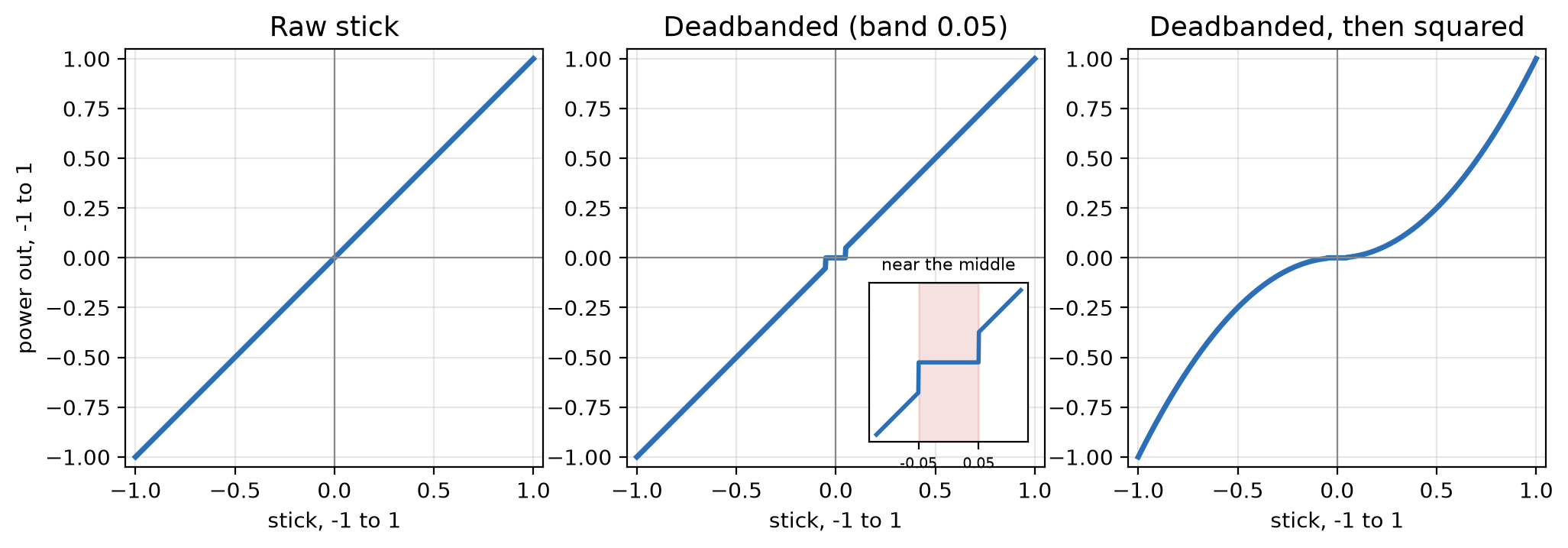
Make the robot sit still when the sticks are let go, and make a gentle push mean gently.
the steps
L060S010: copy the starter into mytry
Copy. In lessons, click L060ShapingOpMode once and copy it. Click mytry once and paste.
In the Copy Class box, click OK. If Android Studio asks whether to add the file to Git,
click Add.
Check.
mytryholdsL060ShapingOpMode, and the new file is open.
L060S020: switch your copy on
Change. Delete the line @Disabled, under the comment that names this step.
Check.
Under the step’s comment, the next line reads
// 'public' so the robot can run this OpMode. 'public' allows access from any code.
L060S030: write a deadband
A stick that has been let go does not always read 0.0. It can read a few hundredths, and a few hundredths of power is enough to make a robot crawl across the floor on its own. A deadband fixes that: any reading closer to the middle than the band counts as let go.
Change. Scroll to the bottom of the file and find the comment that names this step. Under it, write a method of your own:
    // When on L060S030, see
    // https://msb-stitt.github.io/ftc31459-26-27-biobuzz/guide/tasks/l060.html#l060s030
    // for what to do here.
    double deadband(double value, double band) {
        double alwaysPositiveMagnitude = Math.abs(value);
        boolean isCloseToZero = alwaysPositiveMagnitude < band;
        if (isCloseToZero) {
            return 0.0;
        }
        return value;
    }
A method is a named piece of code you can use again. This one takes two numbers, value and
band, and gives back one number. return is the number it gives back.
Each line does one thing, and each result gets a name:
Math.abstakes the minus sign off:Math.abs(-0.03)is 0.03.alwaysPositiveMagnitudeis the size of the reading without its sign. A stick pulled halfway back gives -0.5, and -0.5 is less than 0.05. But it is far from the middle, so it has to be compared without its minus sign.<compares two numbers, and its answer is true or false. Abooleanholds true or false, the way adoubleholds a number.isCloseToZerois true when the size is inside the band.ifruns the lines inside its{ }only when what is in its brackets is true. Here,return 0.0runs only for a stick close to the middle.
Check.
The method has no red underline.
deadbandis gray, with no usages above it. Nothing uses it yet.
L060S040: use the deadband
Change. In driveFromTheSticks(), under the comment that names this step, make a power for each
side:
        // When on L060S040, see
        // https://msb-stitt.github.io/ftc31459-26-27-biobuzz/guide/tasks/l060.html#l060s040
        // for what to do here.
        double band = 0.05;
        double leftPower = deadband(leftSpeed, band);
        Tracker.publish("power/left", leftPower);
        double rightPower = deadband(rightSpeed, band);
        Tracker.publish("power/right", rightPower);
Then change the four setPower lines below, so each one gets the power and not the speed:
        hardware.frontLeft.setPower(leftPower);
        hardware.backLeft.setPower(leftPower);

        hardware.frontRight.setPower(rightPower);
        hardware.backRight.setPower(rightPower);
Simulator. In the Terminal, run:
./gradlew :TeamCode:simRun --args="mytry.L060ShapingOpMode --pad"
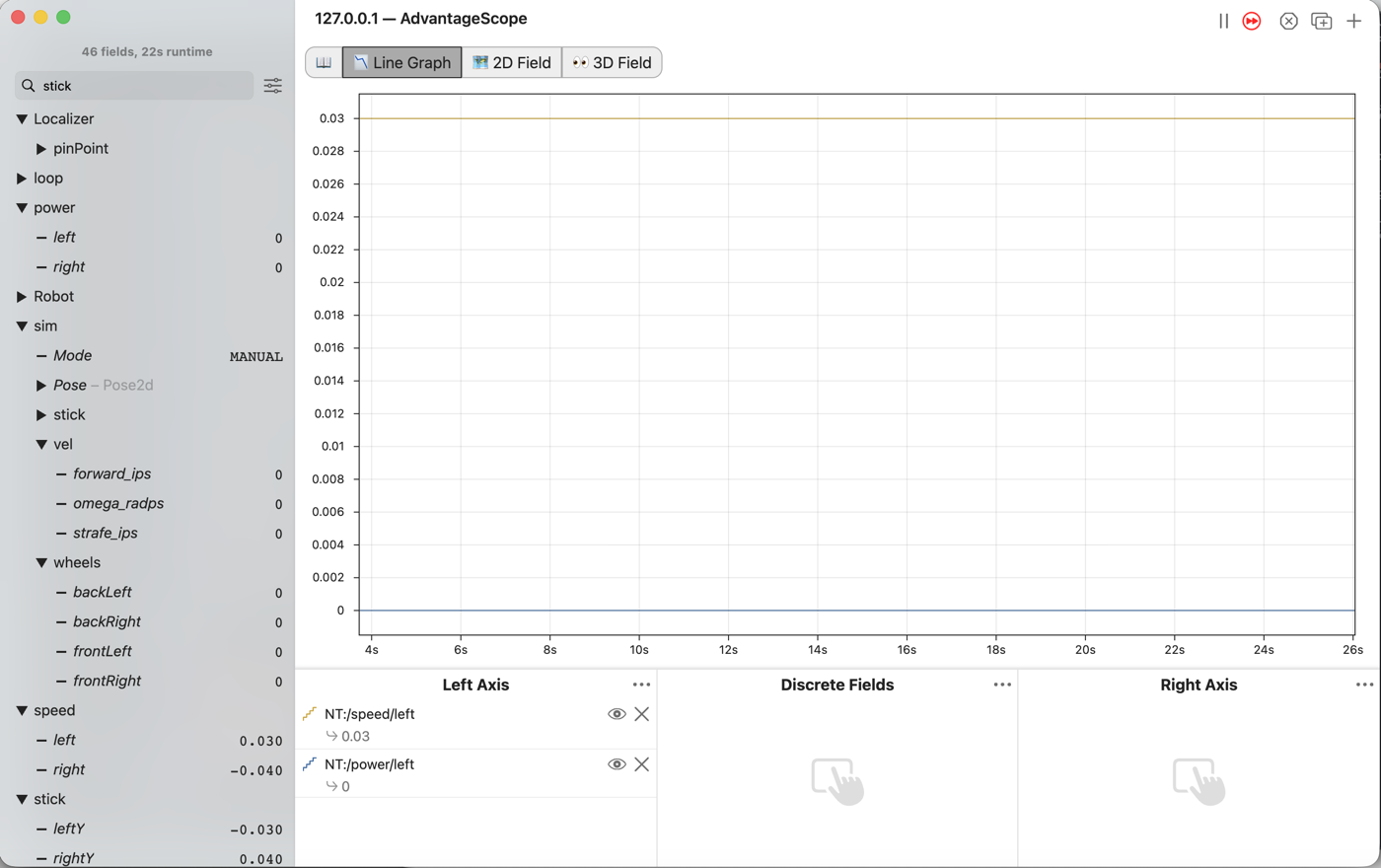
AdvantageScope. Connect to the simulator as in L020. Drag left from the speed folder and
left from the power folder into Left Axis.
Check.
Let go of the sticks.
speed/leftmay sit a little off 0.0, andpower/leftreads 0.0.The wheels in
sim/wheelsall read 0.0.
L060S050: write squaring
With the deadband in, a tenth of a push is still a tenth of the power. Near the middle that is more robot than a driver wants. Squaring fixes it: half a push becomes a quarter of the power, and a full push is still full power.
Change. Press Ctrl+C in the Terminal to stop the simulator. Find the comment that names this step. Under it, write a second method:
    // When on L060S050, see
    // https://msb-stitt.github.io/ftc31459-26-27-biobuzz/guide/tasks/l060.html#l060s050
    // for what to do here.
    double signedSquared(double value) {
        return value * Math.abs(value);
    }
Squaring a number makes it positive. A plus times a plus is a plus. A minus times a minus is a plus too:
+0.5 * +0.5is+0.25-0.5 * -0.5is+0.25
Backward would turn into forward. To keep the speed’s sign, the method multiplies by the size of the number instead:
+0.5 * Math.abs(+0.5)is+0.5 * +0.5, which is+0.25-0.5 * Math.abs(-0.5)is-0.5 * +0.5, which is-0.25, since a negative times a positive is negative
So it squares the size of the number, its magnitude, and keeps its sign. That is why it is called
signedSquared.
Check.
The method has no red underline.
L060S060: use squaring
Change. Go back to the two deadband lines from L060S040. Under each one, add a line that
squares the power:
        double leftPower = deadband(leftSpeed, band);
        leftPower = signedSquared(leftPower);
        double rightPower = deadband(rightSpeed, band);
        rightPower = signedSquared(rightPower);
signedSquared works on what deadband gave back, and puts its answer back in the same name.
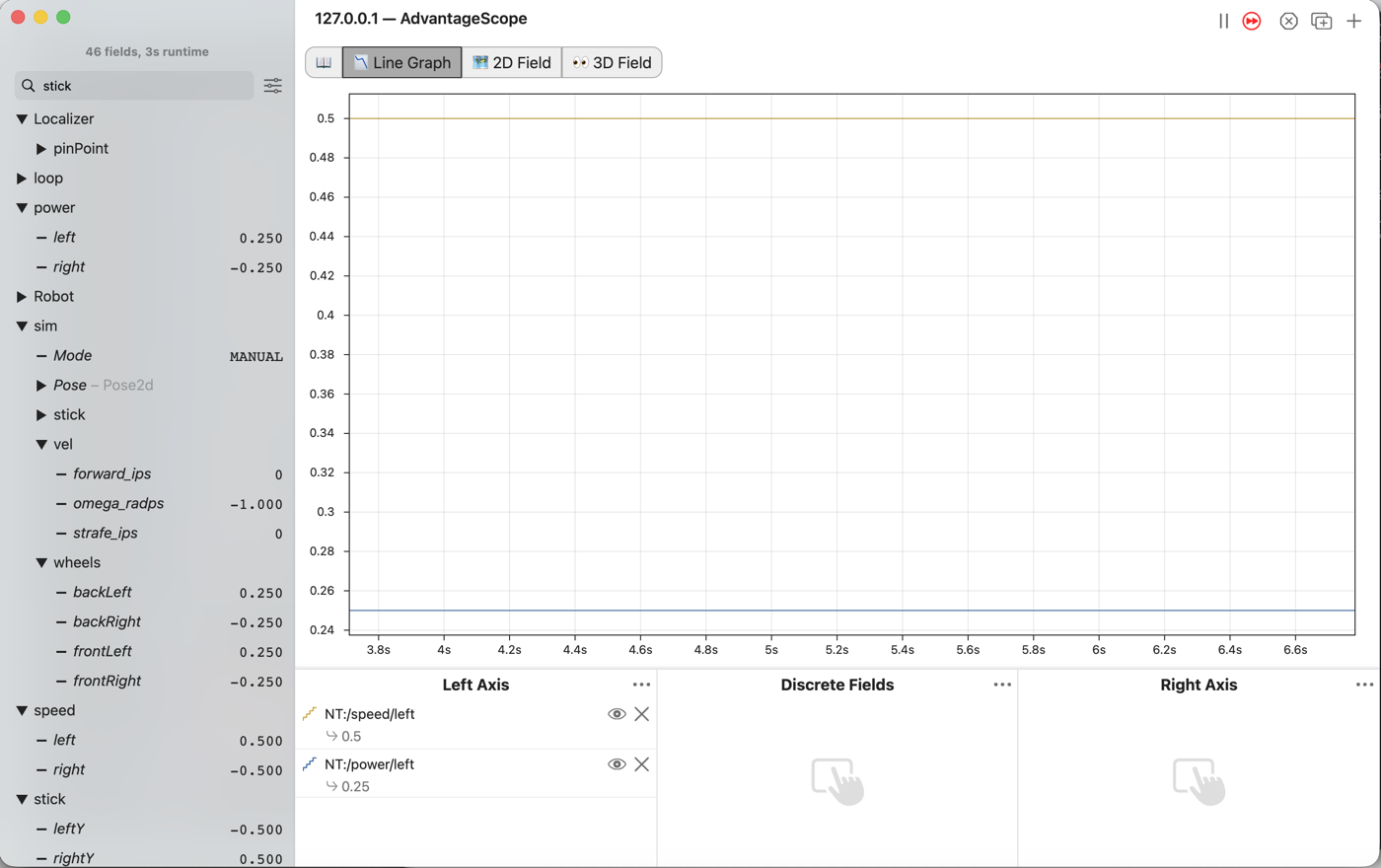
Simulator. Run the same command again, and connect AdvantageScope.
Check.
Push the left stick halfway forward.
speed/leftreads 0.5, andpower/leftreads 0.25.Push it all the way, and both read 1.0.
Pull it back, and the power goes below 0.0.
L060S070: drive it on the robot
Send.
Press Ctrl+C in the Terminal to stop the simulator.
Plug the laptop into the Control Hub with the USB cable.
Pick the Control Hub from the device list, and click the green triangle right of TeamCode.
Check.
Android Studio says the install worked.
Run. On the Driver Station, pick L060 Shaping from the Lessons group. Press INIT.
AdvantageScope.
Join the laptop to the robot’s Wi-Fi.
Open File > Connect to Robot > NetworkTables 4. AdvantageScope still has the robot’s address from L050.
Check.
The title bar reads
192.168.43.1.
Run. Press PLAY. Drag left from the speed folder and left from the power folder into
Left Axis.
Check.
Let go of both sticks, and the robot sits still, with
power/leftat 0.0.Push a stick about a third of the way, and the robot creeps along under control.
Push it all the way, and the robot goes full speed.