020 lesson: read the sticks
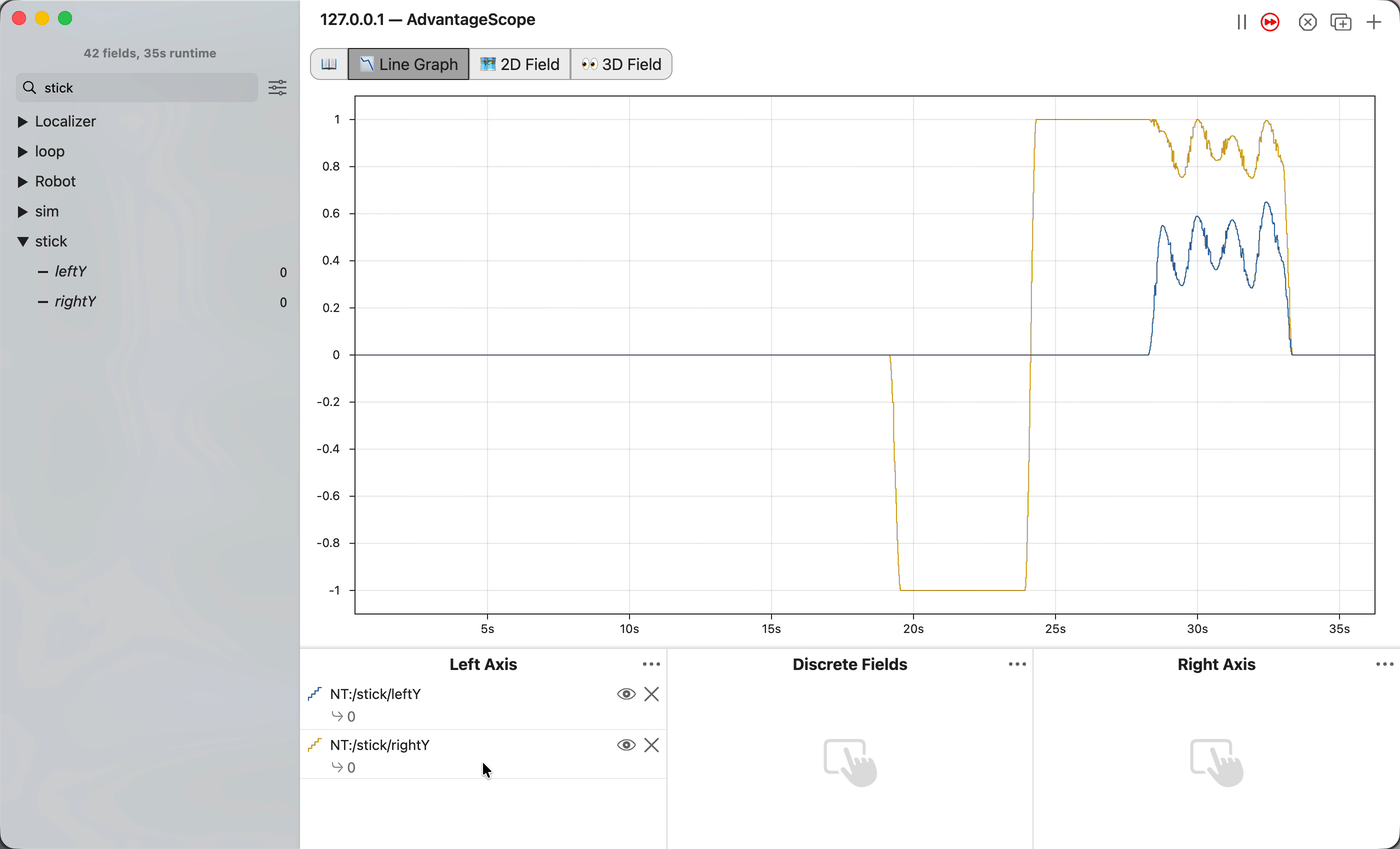
Push the gamepad’s sticks and watch the numbers they send, live on the laptop. Nothing on the robot moves yet.
A video shows every step of this lesson: https://msb-stitt.github.io/ftc31459-26-27-biobuzz/videos/l020.mp4.
the steps
L020S010: copy the starter into mytry
The lessons folder holds the starters: the file each lesson begins from. You copy one into your
own folder, mytry, and change the copy.
Copy.
Open
TeamCode/java/org.firstinspires.ftc.teamcode/lessons.Click
L020SticksOpModeonce, and copy it: ⌘C on a Mac, Ctrl+C on Windows.Click the
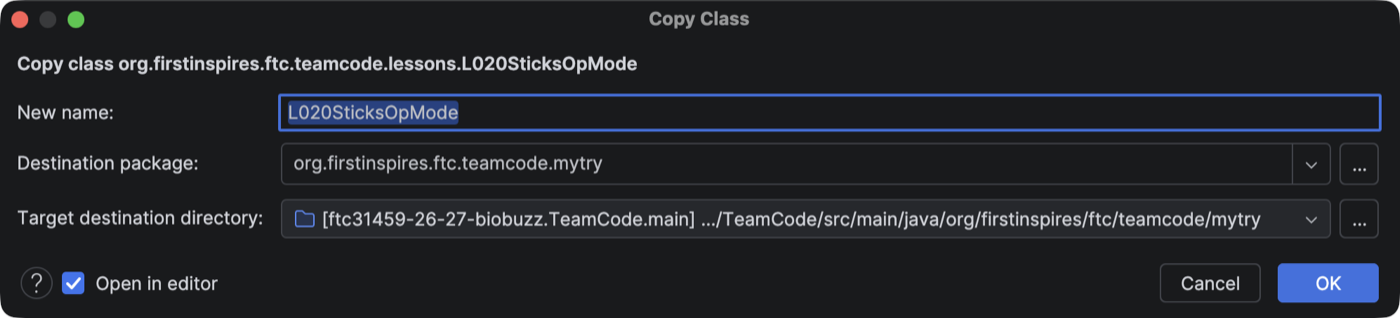
mytryfolder once, and paste.A box called Copy Class opens with Destination package already ending in
mytry. Click OK.If Android Studio asks whether to add the file to Git, click Add.
Check.
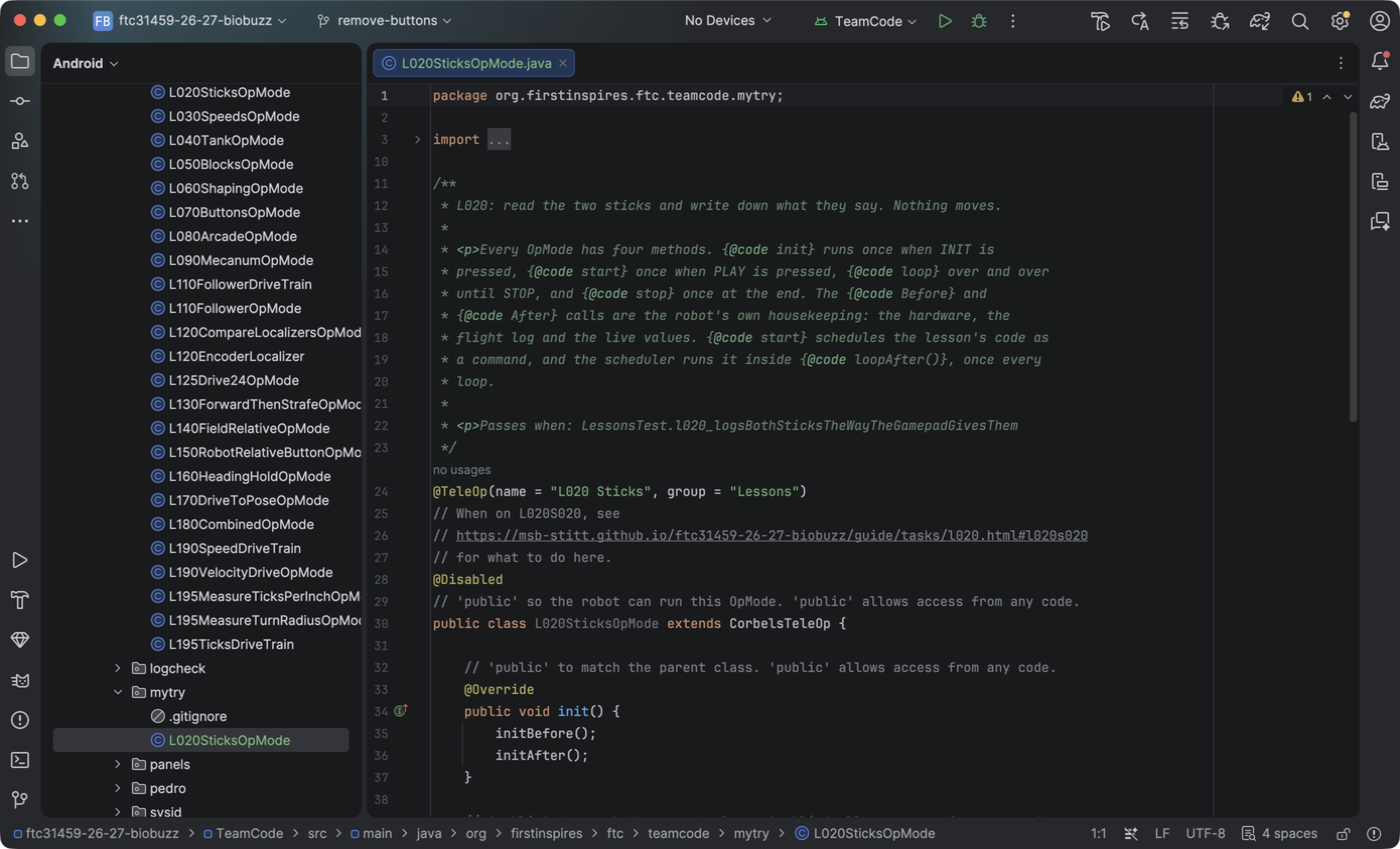
mytryholdsL020SticksOpMode, the file is open, and its first line readspackage org.firstinspires.ftc.teamcode.mytry;.
L020S020: switch your copy on
Change. Find the line @Disabled, just under the comment that names this step. Click on it and
delete the whole line: ⌘Delete on a Mac, Ctrl+Y on Windows and Ubuntu. The first time on Windows,
Android Studio asks whether Ctrl+Y should Redo or Delete Line: click Delete Line.
@Disabled hides an OpMode from the robot’s list. The starter in lessons keeps it, so the robot
only ever lists your copy.
Check.
Under the step’s comment, the next lines read
// 'public' so the robot can run this OpMode. 'public' allows access from any code.andpublic class L020SticksOpMode.
L020S030: read the left stick
The file is an OpMode: one program the robot can run. Pressing INIT runs its init() once.
Pressing PLAY runs its start() once, and start() hands readTheSticks() to the scheduler.
From then until STOP, the scheduler runs readTheSticks() over and over, many times a second. The
simulator presses all three for you.
Change.
Scroll down to
readTheSticks()and find the comment that names this step.Click at the end of its last line and press Enter. Type this much:
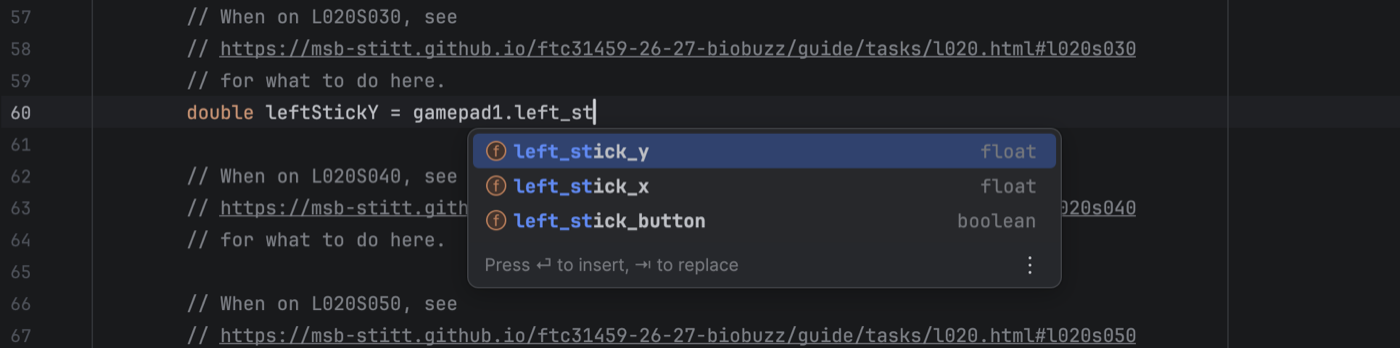
double leftStickY = gamepad1.
A list opens with everything a gamepad has. Type
left_stand the list shrinks to the left stick.left_stick_yis already highlighted. Press Tab. If it isn’t, move the highlight to it with the arrow keys first.Type
;to end the line.
        // When on L020S030, see
        // https://msb-stitt.github.io/ftc31459-26-27-biobuzz/guide/tasks/l020.html#l020s030
        // for what to do here.
        double leftStickY = gamepad1.left_stick_y;
double is Java’s word for a number with a decimal point, like 0.5 or -1.0. leftStickY is a name
you chose for one. The list said float, which is a smaller kind of decimal number. A double
holds any float.
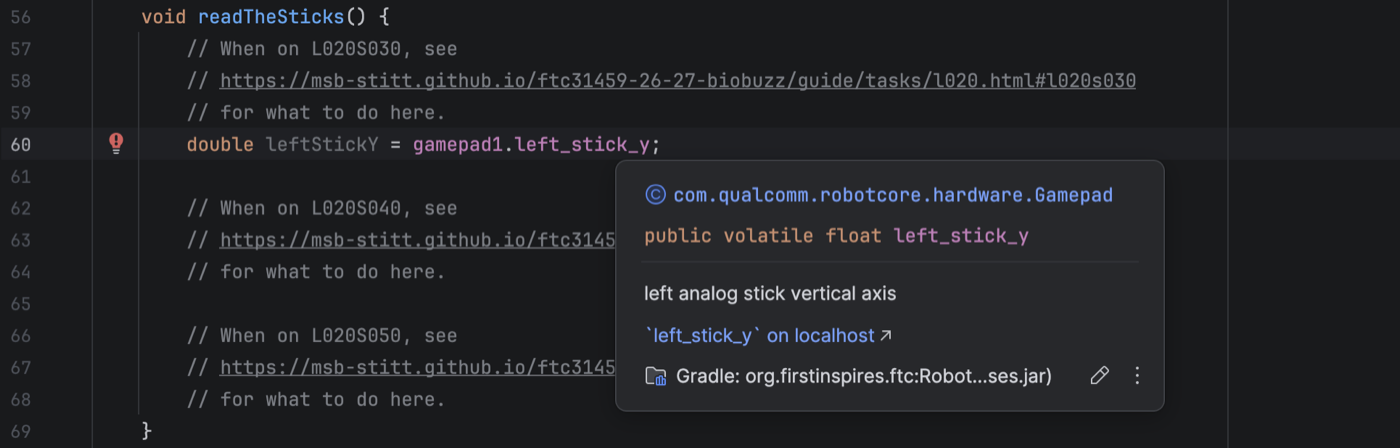
Now hold the pointer still over left_stick_y. A box opens and says what it is: left analog stick
vertical axis. You can do this with any name you are not sure about.
Check.
The line has no red underline.
L020S040: write the left stick down
Change. Under the comment that names this step, type Track. The list shows more than one
Tracker. Pick the one from org.firstinspires.ftc.teamcode.base and press Tab. Then finish the
line:
        // When on L020S040, see
        // https://msb-stitt.github.io/ftc31459-26-27-biobuzz/guide/tasks/l020.html#l020s040
        // for what to do here.
        Tracker.publish("stick/leftY", leftStickY);
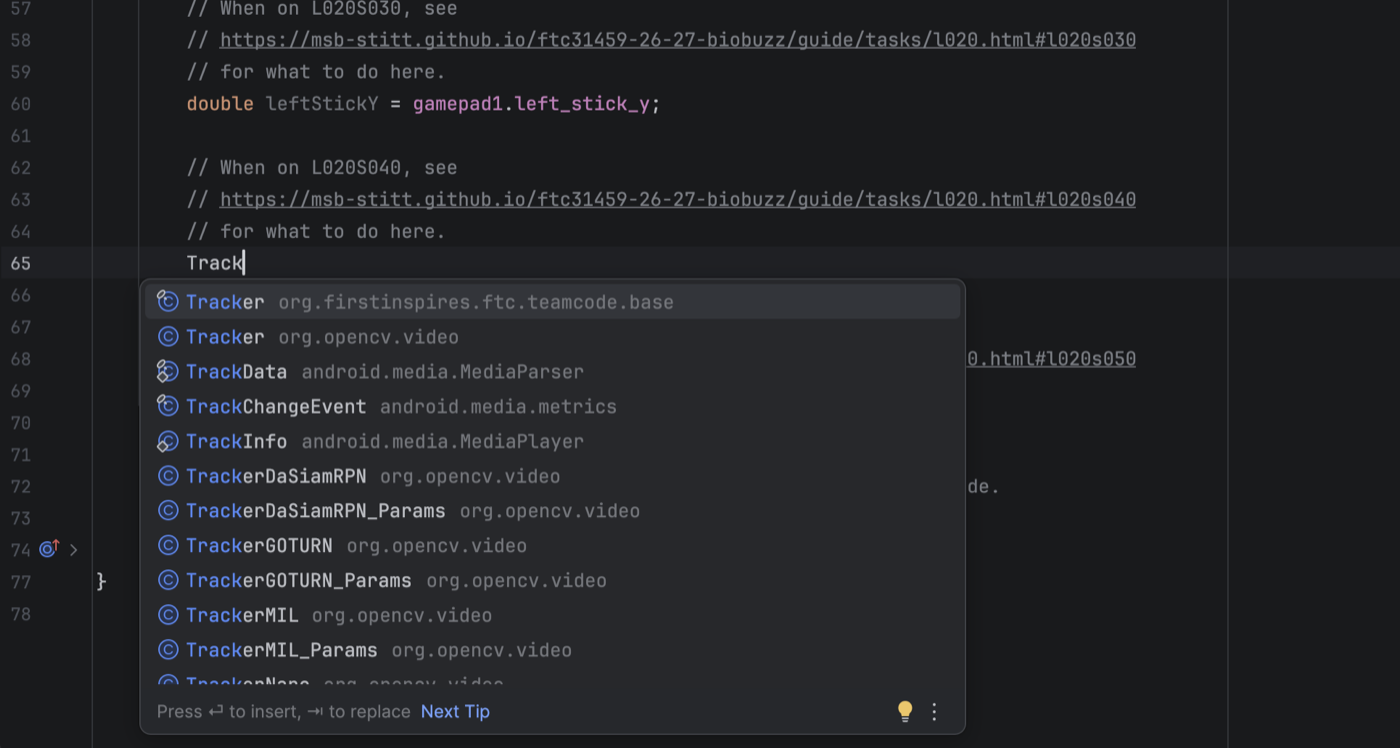
Tracker.publish takes a name and a value. It sends both to AdvantageScope while the code runs, and
writes them in the flight log. Android Studio added an import line for Tracker near the top of
the file.
Check.
Trackeris not red, and there is animport org.firstinspires.ftc.teamcode.base.Tracker;line near the top.
The simulator is a robot that exists only in the laptop. It runs your OpMode just as the real robot would.
Simulator. Click the Terminal button near the bottom of the left edge. Type this and press Enter:
./gradlew :TeamCode:simRun --args="mytry.L020SticksOpMode --pad"
Check.
It lists any connected gamepads.
Then it prints
Flight log:and a folder, thenmytry.L020SticksOpMode running., and stays running.The folder is the project’s top folder, the one that holds
README.md.
If more than one gamepad is plugged in, hold Start and press A on yours, so it becomes gamepad1.
AdvantageScope draws the numbers your code publishes, as they change.
AdvantageScope.
Open AdvantageScope. It is an app of its own, not a part of Android Studio.
Open File > Connect to Simulator > NetworkTables 4. The item marked Default works the same. Then click Line Graph.
Type
stickin the search box at the top left, and clickNT:/stick/leftY.Drag
leftYfrom thestickfolder down into Left Axis.
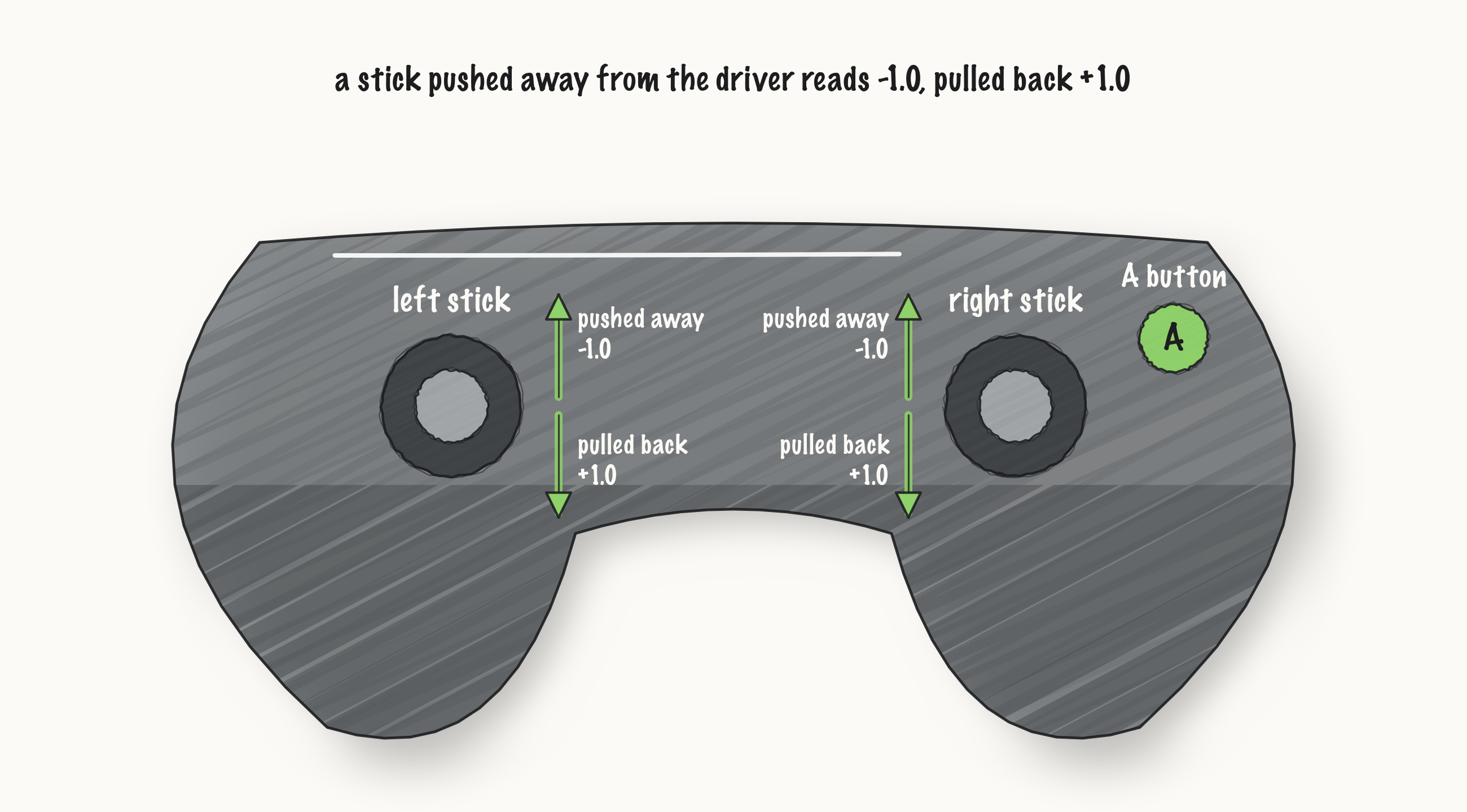
Before you push the stick, guess. When you push the left stick all the way away from you, will the line go to 1.0 or to -1.0? Now push it and see!
Check.
The line moves when you push.
All the way forward it reads -1.0, and all the way back it reads 1.0.
Forward is -1.0 on gamepads. That is how most gamepads are made, not a mistake in your code.
L020S050: the right stick too
Change. Click in the Terminal and press Ctrl+C to stop the simulator. That is Ctrl+C on a Mac too, not ⌘C. Under the comment that names this step, read and write down the right stick the same way:
        // When on L020S050, see
        // https://msb-stitt.github.io/ftc31459-26-27-biobuzz/guide/tasks/l020.html#l020s050
        // for what to do here.
        double rightStickY = gamepad1.right_stick_y;
        Tracker.publish("stick/rightY", rightStickY);
Simulator. Run the same command again.
AdvantageScope. Drag rightY from the stick folder into Left Axis beside leftY.
Check.
Each line follows its own stick.
Push each stick all the way both ways. The numbers never go past 1.0 or below -1.0, and forward is -1.0 on both.
Log.
Press Ctrl+C in the Terminal to stop the simulator.
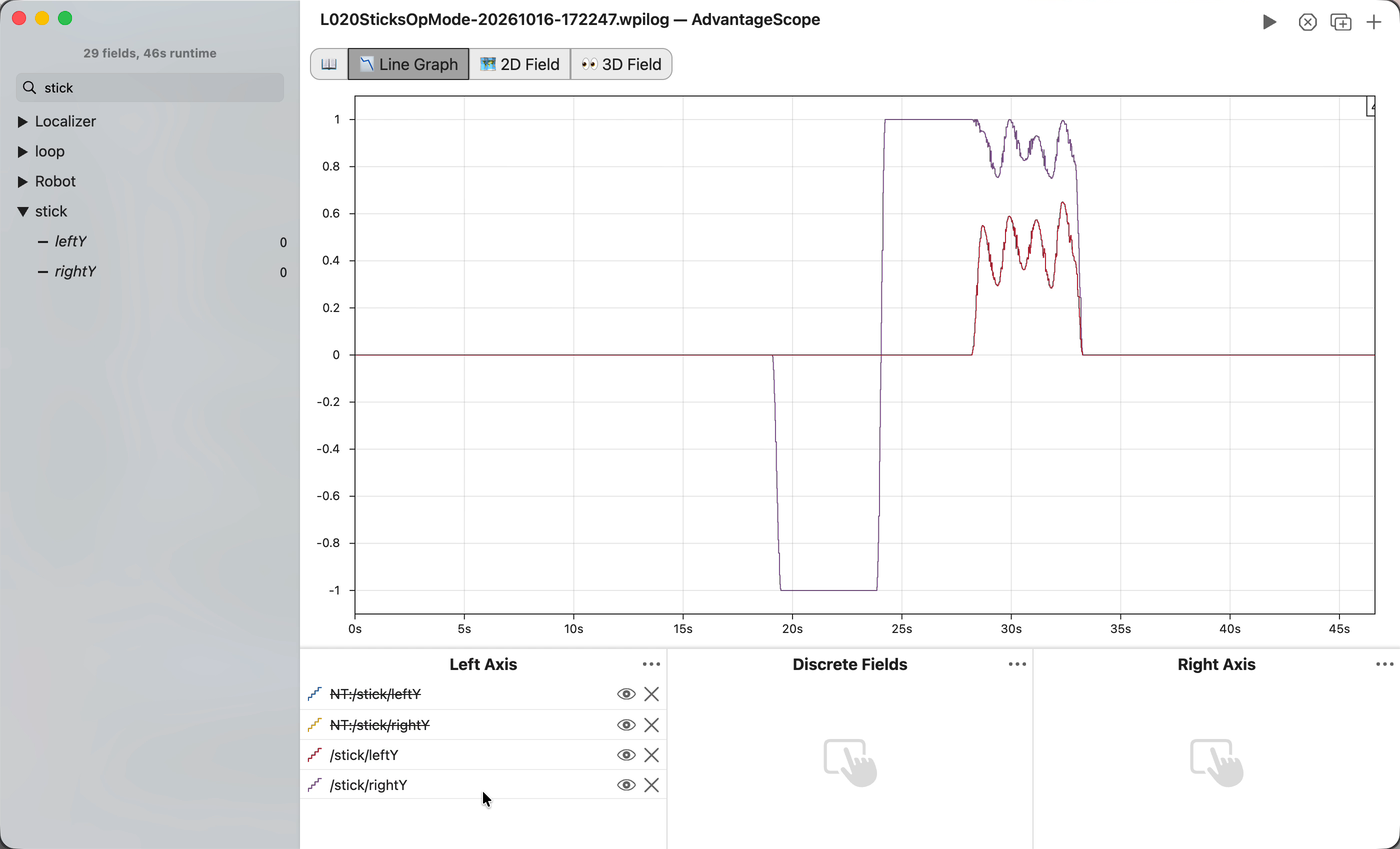
In AdvantageScope, open File > Open Log(s)…. Go to the project’s top folder, and click Date Modified so the newest file is on top. Open the top file whose name starts
L020SticksOpMode.Drag
leftYandrightYfromstickinto Left Axis.
Check.
The lines show what the sticks did during the run.
It is the same
stick/leftYandstick/rightYyou watched live, kept in a file you can open again later.
What’s happening. E021 shows what your two lines do inside the computer.